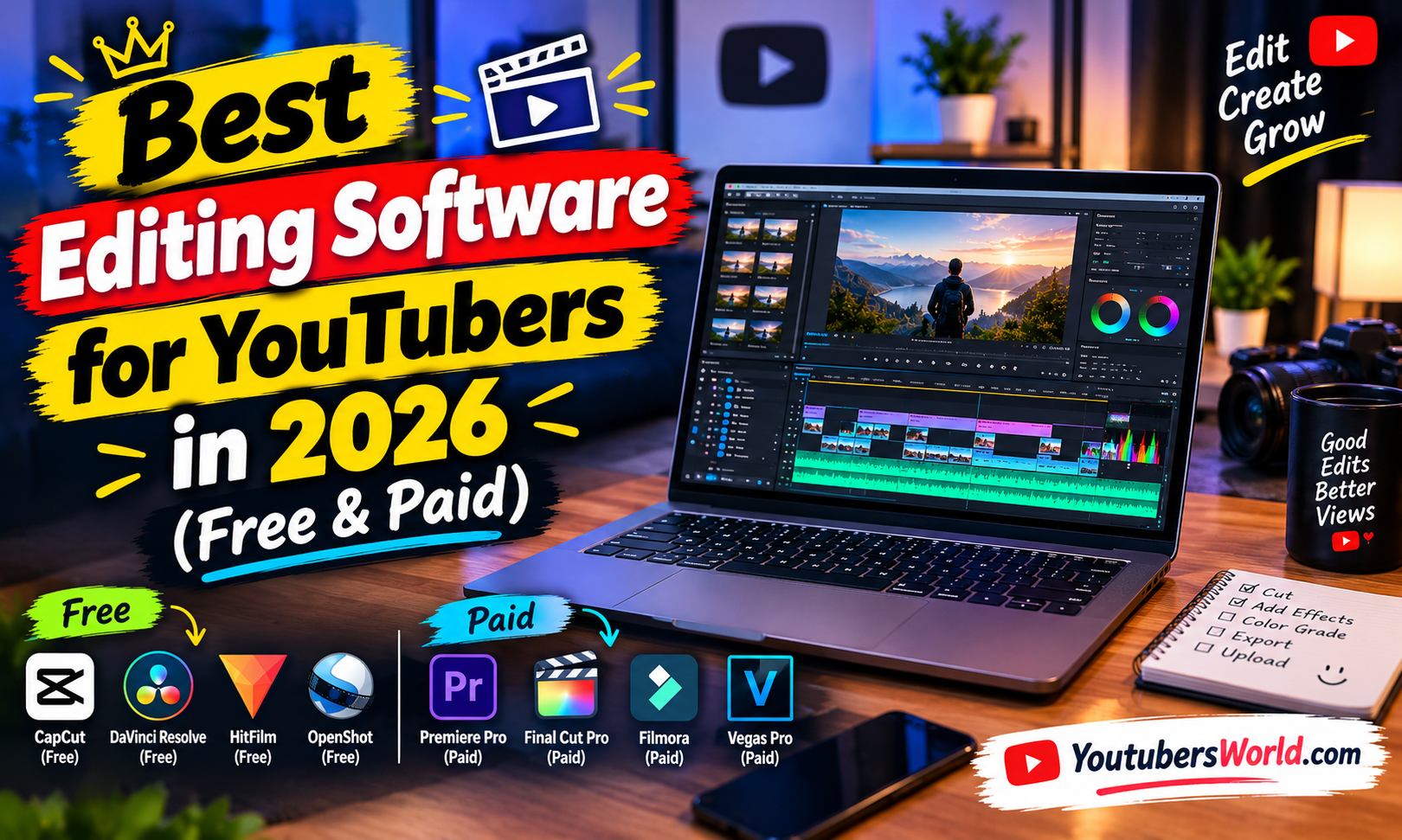
Choosing the best editing software for YouTubers is an important step in creating professional-looking videos and growing your YouTube channel. Whether you make gaming videos, daily vlogs, educational tutorials, technology reviews, reaction videos or YouTube Shorts, the right video editor can help you improve video quality, add effects, remove unwanted footage and create engaging content.
The good news is that you do not need to spend thousands of rupees on expensive editing software to start your YouTube journey. Several excellent free video editors are available, while paid applications offer additional features for professional editing, advanced effects, AI tools and faster workflows.
In 2026, some of the most useful options for creators include DaVinci Resolve, Adobe Premiere, Wondershare Filmora, Final Cut Pro, Clipchamp and iMovie. Each application has different strengths, and the best choice depends on your computer, editing experience, budget and the type of videos you create.
In this guide, we will compare the best editing software for YouTubers, explain their features and costs, and help you choose the right video editor for your channel.
Best Editing Software for YouTubers: Quick Comparison
| Software | Price Model | Best For |
| DaVinci Resolve | Free version and paid Studio edition | Best overall free editor |
| Adobe Premiere | Paid subscription | Professional YouTube videos |
| Wondershare Filmora | Paid plans; options vary | Beginners and fast editing |
| Final Cut Pro | Paid software | Mac users and professional creators |
| Microsoft Clipchamp | Free and paid features | Beginners and basic editing |
| Apple iMovie | Free on supported Apple devices | New Mac and iPhone creators |
| Kdenlive | Free and open-source | Budget-conscious Windows, Mac and Linux users |
| Shotcut | Free and open-source | Basic to intermediate editing |
My recommendation: Start with DaVinci Resolve if you want powerful editing tools without a subscription. Choose Filmora if you prefer a more beginner-friendly interface, or Adobe Premiere if you want an advanced workflow and integration with other Adobe applications.
1) DaVinci Resolve – Best Free Editing Software for YouTubers
DaVinci Resolve is one of the strongest choices for YouTubers who want professional editing features without paying for a monthly subscription.
Developed by Blackmagic Design, it combines video editing, colour correction, visual effects, motion graphics and audio post-production in one application. The free version is powerful enough for many YouTube workflows, including numerous 4K projects. Some advanced features are reserved for the paid Studio edition.
Key features of DaVinci Resolve
- Professional video editing tools
- Advanced colour correction and grading
- Visual effects and motion graphics through Fusion
- Audio editing through Fairlight
- Multitrack timelines
- Support for common video formats
- Export options for YouTube content
Advantages of DaVinci Resolve
- Powerful free version: You can create polished videos without paying a monthly subscription.
- Professional colour grading: Its colour tools are particularly useful for travel videos, cinematic vlogs, product reviews and documentaries.
- All-in-one workflow: You can edit footage, improve colours, work on audio and add visual effects in one application.
- Room to grow: Beginners can start with simple cuts and transitions before learning advanced editing techniques.
Disadvantages of DaVinci Resolve
- The interface can feel complicated to beginners.
- Demanding effects and high-resolution footage may require powerful hardware.
- Some advanced features require the Studio edition.
- Learning the colour and Fusion workflows takes time.
DaVinci Resolve Price in India
- DaVinci Resolve: Free.
- DaVinci Resolve Studio: Check Blackmagic Design’s official India website for the current licence price.
Best for: YouTubers who want professional editing tools without a recurring software subscription.
Official website: https://www.blackmagicdesign.com/products/davinciresolve
2) Adobe Premiere — Best for Professional YouTubers
Adobe Premiere is a popular choice for professional video editors, content creators and production teams. It offers detailed timeline editing, audio tools, effects, colour adjustments and AI-assisted features.
It is particularly useful for creators who produce regular long-form videos, work with other editors or already use Adobe applications.
Key features of Adobe Premiere
- Multitrack video and audio editing
- Professional trimming and timeline tools
- Colour correction and adjustment controls
- Titles, transitions and effects
- AI-assisted transcription and text-based editing features
- Audio enhancement tools
- Integration with other Adobe creative applications
Advantages of Adobe Premiere
- Professional editing workflow: Suitable for complex YouTube projects and detailed editing.
- Flexible timeline: You can organise multiple video, voice-over, music and graphics tracks.
- Useful integrations: Adobe workflows can be valuable when you also create graphics, animations and thumbnails using other compatible applications.
- Collaboration: It can suit creators who work with editors, designers and production teams.
Disadvantages of Adobe Premiere
- It requires a paid subscription.
- Learning advanced tools can take time.
- Performance depends on your processor, memory, graphics hardware and project complexity.
- Subscription costs should be considered when budgeting for a new channel.
Adobe Premiere Price in India
Adobe’s India website lists Premiere at ₹389 per month including GST for the first year under an advertised annual, billed-monthly offer for eligible new subscribers. The displayed regular renewal price is ₹733.96 per month including GST. Offers and eligibility conditions apply, so verify the current terms before purchasing.
Best for: Professional YouTubers, freelance editors and creators who need advanced editing and collaboration workflows.
Official website: https://www.adobe.com/in/products/premiere.html
3) Wondershare Filmora — Best Editing Software for Beginners
Wondershare Filmora is designed to make video editing more approachable. Its interface, built-in effects, templates and guided tools can help new YouTubers create videos without first learning a complex professional editing workflow.
It is worth considering if you want to edit vlogs, tutorials, product reviews and social media videos quickly.
Key features of Wondershare Filmora
- Drag-and-drop editing
- Titles and transitions
- Built-in effects and templates
- Audio editing tools
- Screen recording features, depending on the version
- AI-assisted editing features in supported plans
- Export options for online video platforms
Advantages of Wondershare Filmora
- Beginner-friendly interface: It is generally easier to approach than more complex professional editors.
- Ready-made effects: Templates and titles can speed up the production of simple YouTube videos.
- Useful everyday tools: You can trim footage, add background music, include text and arrange multiple clips on a timeline.
- Suitable for different content types: It can handle ordinary vlogs, tutorials, reviews and short videos.
Disadvantages of Wondershare Filmora
- Many premium effects and features require a paid plan.
- Subscription and perpetual licence terms vary.
- Some features may require additional credits or payments.
- Advanced editors may eventually want more control over colour grading, audio and complex effects.
Wondershare Filmora Price in India
Filmora offers different paid plans, with pricing dependent on the licence, platform and included features. Check the official store for the latest Indian price and renewal conditions.
Best for: Beginners, small YouTube channels and creators who prioritise ease of use.
Official website: https://filmora.wondershare.com/
4) Final Cut Pro — Best Editing Software for Mac Users
Final Cut Pro is Apple’s professional video editing application for Mac. It is designed for efficient editing and is particularly attractive to creators who already work within the Apple ecosystem.
Key features of Final Cut Pro
- Magnetic Timeline
- Advanced video editing
- Colour correction tools
- Multicam editing
- Motion graphics integration through compatible tools
- Performance optimisations for supported Mac hardware
- Tools for organising large media libraries
Advantages of Final Cut Pro
- Efficient workflow: Its Magnetic Timeline offers a different approach to arranging and managing clips.
- Mac optimisation: Supported Apple hardware can provide a responsive editing experience.
- Professional tools: It is suitable for long-form YouTube videos, travel films, interviews and other demanding projects.
- Useful for frequent editors: Creators who publish regularly can benefit from a well-organised workflow.
Disadvantages of Final Cut Pro
- It is designed for Apple’s ecosystem rather than Windows.
- It requires an upfront purchase or another available licensing option, depending on the version and region.
- New users need time to learn its editing workflow.
- Professional plugins and additional tools can increase the overall cost.
Price of Final Cut Pro
Check Apple’s official website or Mac App Store for current pricing in India.
Best for: MacBook users, professional creators and editors who want a dedicated Mac video-editing application.
Official website: https://www.apple.com/final-cut-pro/
5) Microsoft Clipchamp — Best for Simple YouTube Videos
Microsoft Clipchamp is a convenient option for beginners who need straightforward editing tools. It can be useful for creators who make tutorials, screen recordings, educational videos and simple promotional content.
Its availability and features depend on the platform, account and subscription.
Key features of Microsoft Clipchamp
- Browser-based and Windows editing options
- Video trimming and clip arrangement
- Text, titles and transitions
- Templates and stock assets in supported plans
- Screen and webcam recording features
- Export options based on the available plan
Advantages of Microsoft Clipchamp
- Easy to get started with.
- Suitable for simple projects.
- Useful for creators who do not need a complex professional timeline.
- Convenient for basic content and screen recordings.
Disadvantages of Microsoft Clipchamp
- Advanced editing controls are more limited than those in professional editors.
- Some features and stock assets may require a paid plan.
- Browser-based workflows depend on your system and internet connection.
- Demanding projects may be better handled by dedicated desktop editing software.
Price of Microsoft Clipchamp
A free tier is available, while some features may require a paid Microsoft or Clipchamp plan. Check the official website for current plan details.
Best for: New YouTubers, students and creators making basic videos.
Official website: https://clipchamp.com/
6) Apple iMovie — Best Free Editing Software for Beginners
Apple iMovie is a straightforward video editor available on supported Apple devices. It is useful for people who want to create YouTube videos without purchasing a professional editing application.
Key features of Apple iMovie
- Video trimming and arrangement
- Titles and transitions
- Basic colour adjustments
- Music and sound effects
- Simple project organisation
- Export options for sharing videos
Advantages of Apple iMovie
- Free on supported Apple devices.
- Easy to learn.
- Suitable for basic vlogs and educational videos.
- Works well for simple editing workflows.
Disadvantages of Apple iMovie
- Fewer advanced tools than Final Cut Pro.
- Limited options for complex effects and colour grading.
- Not available as a native Windows application.
- Advanced creators may outgrow its capabilities.
Best for: Beginner YouTubers who already own a Mac, iPhone or other supported Apple device.
Official website: https://www.apple.com/imovie/
7) Kdenlive — Best Free Open-Source Video Editor
Kdenlive is a free, open-source video editor that supports Windows, macOS and Linux. It is a useful option for creators who want desktop editing tools without a paid subscription.
Key features of Kdenlive
- Multitrack timeline editing
- Transitions and effects
- Titles and compositing
- Audio and video editing
- Proxy editing options
- Support for common media formats
Advantages of Kdenlive
- Free to use.
- Open-source software.
- No required monthly editing subscription.
- Useful for creators who prefer desktop software and local files.
Disadvantages of Kdenlive
- The interface can take time to learn.
- Workflow polish and performance may vary by system.
- Some advanced workflows may be less convenient than in commercial alternatives.
- Beginners may need tutorials to understand its tools.
Best for: Budget-conscious creators and users who prefer open-source applications.
Official website: https://kdenlive.org/
8) Shotcut — Best Free Editor for Basic and Intermediate Editing
Shotcut is another free, open-source video editor available for Windows, macOS and Linux. It provides a practical set of tools for creators who want to edit videos without paying for a commercial application.
Key features of Shotcut
- Multitrack editing
- Video and audio filters
- Transitions and colour adjustments
- Support for a wide range of formats
- Resolution and frame-rate options
- Local desktop editing
Advantages of Shotcut
- Free with no mandatory subscription.
- Useful for straightforward editing projects.
- Supports common media formats.
- Works across multiple desktop operating systems.
Disadvantages of Shotcut
- Its interface may feel less polished than some commercial editors.
- Advanced effects workflows can be less convenient.
- Beginners may need time to understand filters and timeline controls.
Best for: Creators who need a free desktop editor for ordinary YouTube projects.
Official website: https://shotcut.org/
Best Editing Software for Different Types of YouTubers
Not every YouTuber needs the same editing application. Your content and workflow should determine which software you choose.
| Type of YouTuber | Recommended Software | Reason |
| Beginner YouTuber | Filmora or iMovie | Easier learning curve |
| Gaming YouTuber | DaVinci Resolve or Premiere | Multitrack editing and effects |
| Tech reviewer | Premiere or DaVinci Resolve | Detailed editing and graphics |
| Travel vlogger | DaVinci Resolve or Final Cut Pro | Colour grading and cinematic footage |
| Educational creator | Clipchamp or Filmora | Simple cuts, titles and screen recordings |
| Professional video editor | Premiere or Final Cut Pro | Advanced workflows |
| Budget-conscious creator | DaVinci Resolve, Kdenlive or Shotcut | Free desktop editing |
| MacBook user | Final Cut Pro, iMovie or DaVinci Resolve | Options for different budgets |
| YouTube Shorts creator | Filmora or a suitable mobile editor | Fast vertical-video workflows |
Which Editing Software Is Best for YouTube Shorts?
YouTube Shorts require a slightly different editing workflow from traditional long-form videos.
For Shorts, you may need to create a vertical 9:16 timeline, add subtitles, remove pauses, include sound effects and make quick cuts.
Filmora is worth considering for its approachable interface and templates. DaVinci Resolve can also handle vertical timelines and advanced editing, while other mobile and desktop editors may offer faster workflows for short clips.
Before choosing a tool, check its current caption-generation features, export settings and licensing terms. Some applications restrict premium effects, AI features or high-resolution exports to paid plans.
Best Video Editing Software for YouTubers by Budget
| Budget | Recommended Software | Why |
| ₹0 | DaVinci Resolve, Kdenlive or Shotcut | Powerful free editing options |
| ₹0 on supported Apple devices | iMovie | Simple editing for beginners |
| Free tier | Microsoft Clipchamp | Basic editing and screen recording |
| Paid beginner option | Wondershare Filmora | Templates and easy editing |
| Paid professional option | Adobe Premiere | Advanced editing and creative workflows |
| Paid Mac option | Final Cut Pro | Professional Mac-based editing |
These categories describe software options rather than guaranteed total costs. Paid subscriptions, promotions, AI credits, add-ons and licence conditions can change. Check the official vendor’s pricing page before purchasing.
Minimum Computer Requirements for Video Editing
Video editing software can put considerable demands on your computer, especially when working with 4K footage, effects and colour grading.
Recommended specifications for beginners
- Processor: A modern Intel Core i5/Core 5 or AMD Ryzen 5-class processor, or a suitable Apple silicon chip.
- RAM: 16GB recommended for regular editing.
- Storage: SSD with sufficient free space; 512GB is a practical starting point.
- Graphics: Integrated graphics may be sufficient for simple editing, depending on the software and footage.
- Operating system: A supported, up-to-date version of Windows or macOS.
Recommended specifications for demanding editing
- Processor: Higher-performance modern CPU.
- RAM: 32GB or more for complex projects.
- Storage: 1TB SSD or larger, with external storage for footage.
- Graphics: A capable dedicated GPU where your chosen software benefits from it.
- Cooling: Adequate cooling for long exports.
If your computer struggles to play 4K footage smoothly, consider using proxy files or lower-resolution preview settings before upgrading your hardware.
Tips for Better YouTube Video Editing
Choosing good software is only one part of making a professional video. These practices can also improve your results.
- Remove unnecessary pauses: Keep the video focused and engaging.
- Improve your audio: Reduce background noise and maintain consistent speech volume.
- Use readable captions: Ensure subtitles are large enough for mobile viewers.
- Avoid excessive transitions: Simple cuts often look more professional.
- Correct your colours: Maintain consistent exposure and skin tones.
- Use copyright-safe music: Check the licence terms for music and sound effects before publishing.
- Export with appropriate settings: Match the resolution and frame rate to your footage and intended upload.
- Save project backups: Keep copies of important projects and original footage.
Frequently Asked Questions
Which is the best editing software for YouTubers?
DaVinci Resolve is an excellent starting point for creators who want powerful free editing tools. Adobe Premiere is a strong choice for professional workflows, while Filmora is suitable for beginners who prefer a simpler interface.
What is the best free video editing software for YouTube?
DaVinci Resolve is one of the best free options for desktop video editing. Kdenlive and Shotcut are also worth considering if you prefer open-source software.
Can I edit YouTube videos without paying?
Yes. DaVinci Resolve, Kdenlive and Shotcut offer free desktop editing options. Apple iMovie is also free on supported Apple devices.
Is Adobe Premiere worth paying for?
It can be worthwhile if you need its advanced editing tools, integrations and professional workflow. If you only make simple videos, a free editor may be sufficient.
Which software is easiest for beginners?
Filmora, iMovie and Clipchamp are worth considering because their interfaces and workflows can be easier to approach than advanced professional editors.
Which video editor is best for gaming YouTubers?
DaVinci Resolve and Adobe Premiere are strong choices for gaming videos because they offer multitrack editing, audio controls and tools for adding overlays and effects. Your hardware also matters when working with high-resolution recordings.
Is DaVinci Resolve completely free?
DaVinci Resolve has a free version with extensive editing features. DaVinci Resolve Studio is a separate paid edition that adds advanced tools and capabilities.
Can I edit 4K videos on a laptop?
Yes, provided the laptop has suitable hardware. Performance depends on the footage format, processor, RAM, GPU, storage and editing software. Proxy workflows can help on less powerful machines.
Does video editing software affect YouTube monetisation?
YouTube does not require creators to use a particular editing application. What matters is that your content complies with YouTube’s monetisation and copyright policies. Your software’s music, footage and template licences must also permit your intended use.
Final Thought: Which Editing Software Should You Choose?
The best editing software for YouTubers depends on your experience, budget and type of content.
- Best free editor: DaVinci Resolve.
- Best for professional editing: Adobe Premiere.
- Best for beginners: Wondershare Filmora.
- Best for Mac professionals: Final Cut Pro.
- Best for basic editing: Microsoft Clipchamp.
- Best free option for Apple beginners: iMovie.
- Best open-source alternatives: Kdenlive and Shotcut.
My recommendation is to begin with a free editor before spending money on a subscription. DaVinci Resolve is a particularly strong option if you want to learn professional editing and build your skills over time. If you prefer a simpler interface, Filmora may help you start producing videos sooner.
Remember that software alone does not make a successful YouTube channel. Clear audio, good storytelling, useful content, consistent publishing and an engaging presentation are just as important.
Choose the editor that helps you create better videos consistently, and upgrade your workflow when your channel’s needs justify the additional cost.
Editorial note: Software features, subscription plans and pricing can change. Check official websites for current availability, system requirements and licence conditions before installing or purchasing any application.